Share this article





Stop typing event details like it’s 1999!
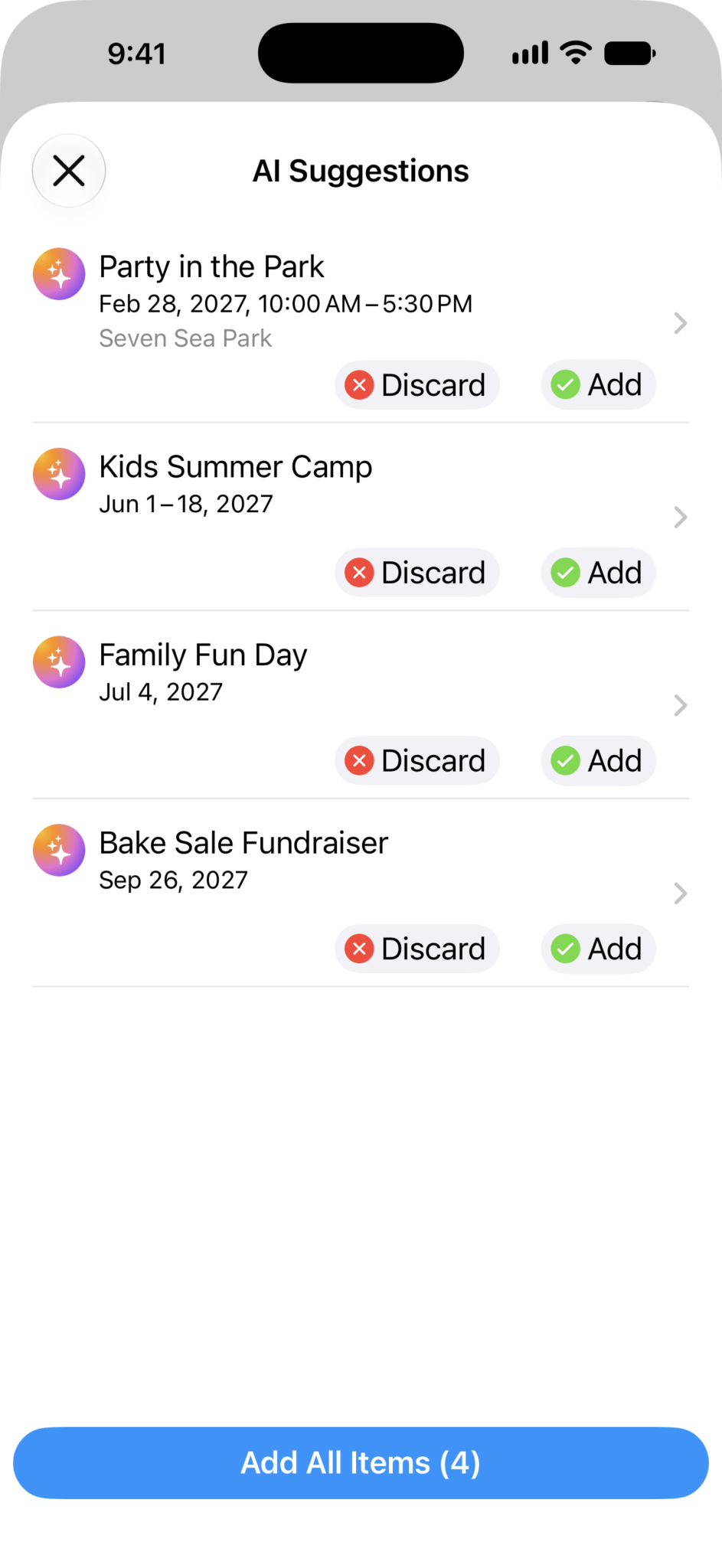
No more manually copying dates and times from party invites, concert tickets, or screenshots, just let Fantastical scan the images and files to magically generate events on your calendar in seconds.
On your iPhone or iPad, tap the new camera icon when creating an event in Fantastical and choose to take a pic (of that book club flyer hanging in your coffee shop), or upload a photo/screenshot directly from your library.

On your Mac just drag and drop an image or file (like a PDF or event poster) onto the main Fantastical window, or simply copy and paste it over. Note: Only available in the main Fantastical app window at this time!
Heads-Up: The first time you give the feature a spin, Fantastical will ask for permission to upload the image or file and extract event details. All uploaded data is deleted immediately after processing.

Pro Tip: Tying up loose ends in your inbox? Don’t forget our Forward to Fantastical feature to turn email confirmations into scheduled events – no screenshots required!
Update Fantastical today, give point-and-shoot (or drag-and-drop) a spin, and let your camera do the heavy lifting of scheduling!
Got questions? Our Support team has answers 😉