




Settings
- Flexibits Account
- General
- Calendars & Lists
- Accounts
- Openings
- Appearance
- Alerts & Notifications
- Weather
Flexibits Account
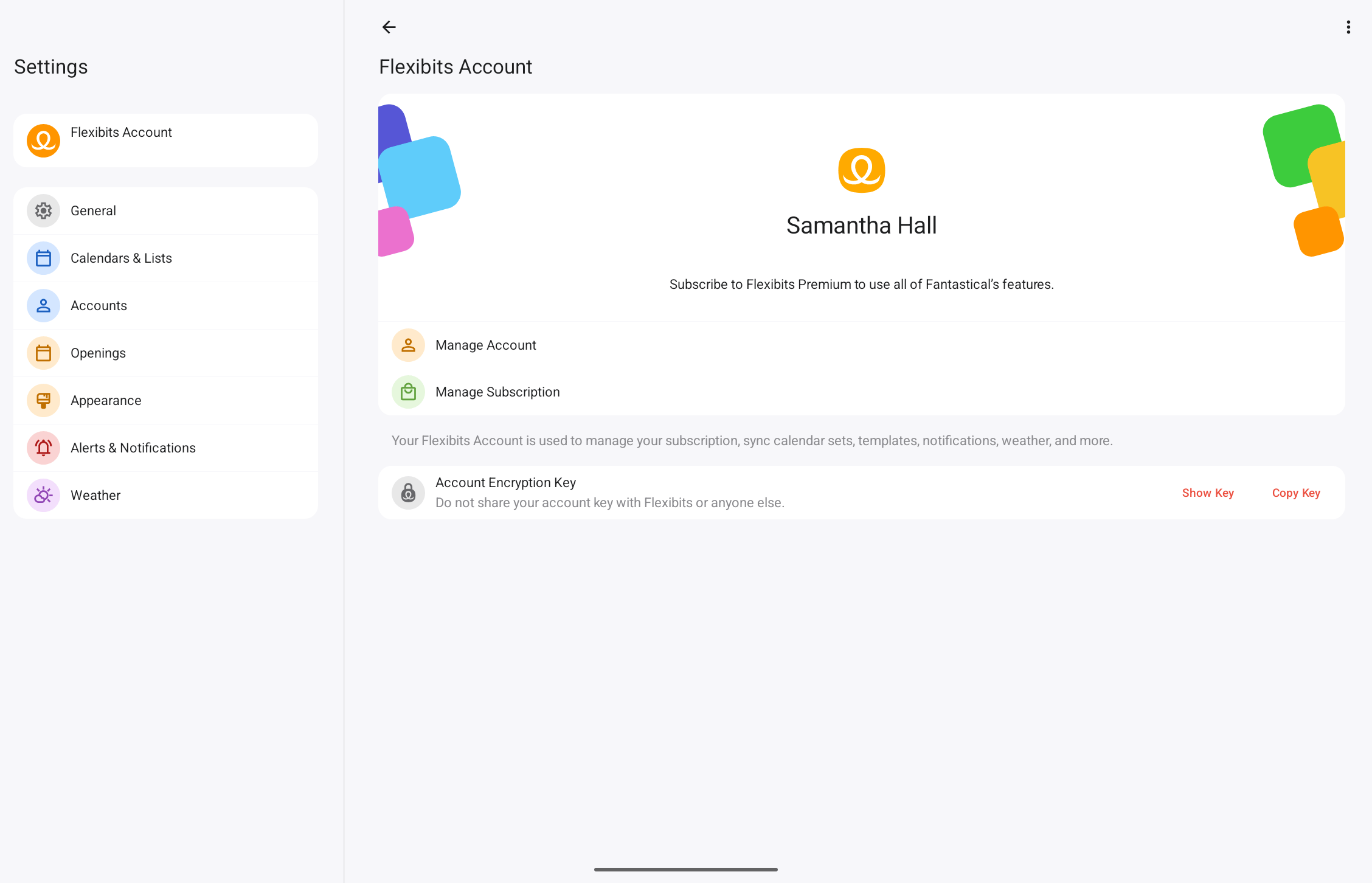
Sign in to your Flexibits Account in this tab to access all of your premium features in the app.
Once you are signed in, you will be able to manage your account, and view or copy your Account Encryption Key.
General
New events
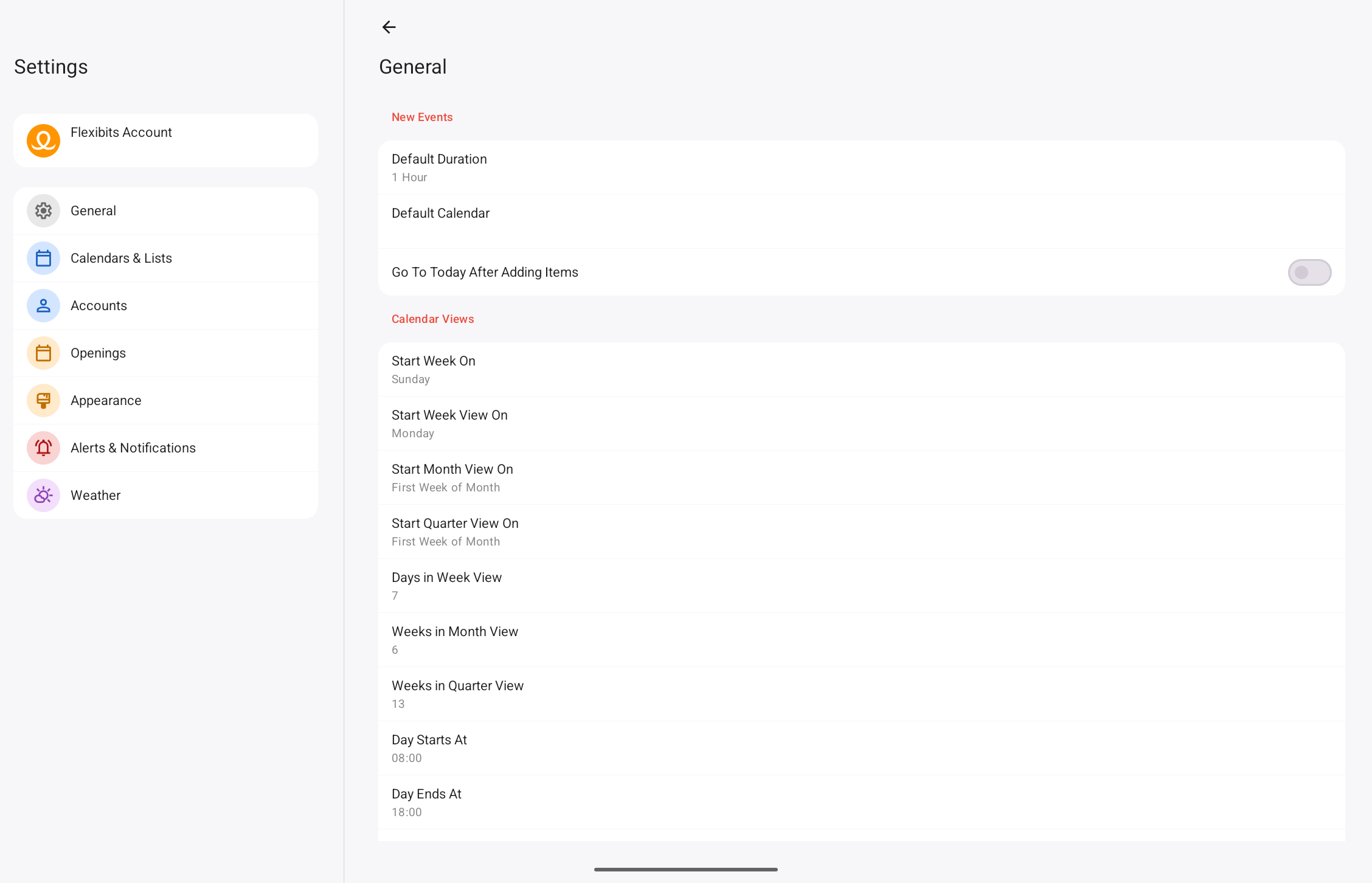
- Default Duration: Set the default duration for new timed events.
- Default Calendar: Choose which calendar new events are added to by default.
- Go to Today After Adding Items: When enabled, Fantastical will return to the current date after adding an item, instead of remaining on the day the new item was added to.
Calendar Views
- Start Week On: Choose any weekday to start your week.
- Start Week View On: Choose whether to start week view on the weekday you specify, or today or selected day.
- Start Month View On: Choose to start month view on the first week of the month, or the current or selected month.
- Start Quarter View On: Choose to start quarter view on the first week of the month, or the current or selected week.
- Days in Week View: Select how many days should be displayed in week view.
- Weeks in Month View: Select how many weeks should be displayed in month view.
- Weeks in Quarter View: Select how many weeks should be displayed in quarter view.
- Day Starts At: Specify when your day should begin.
- Day Ends At: Specify when your day should end.
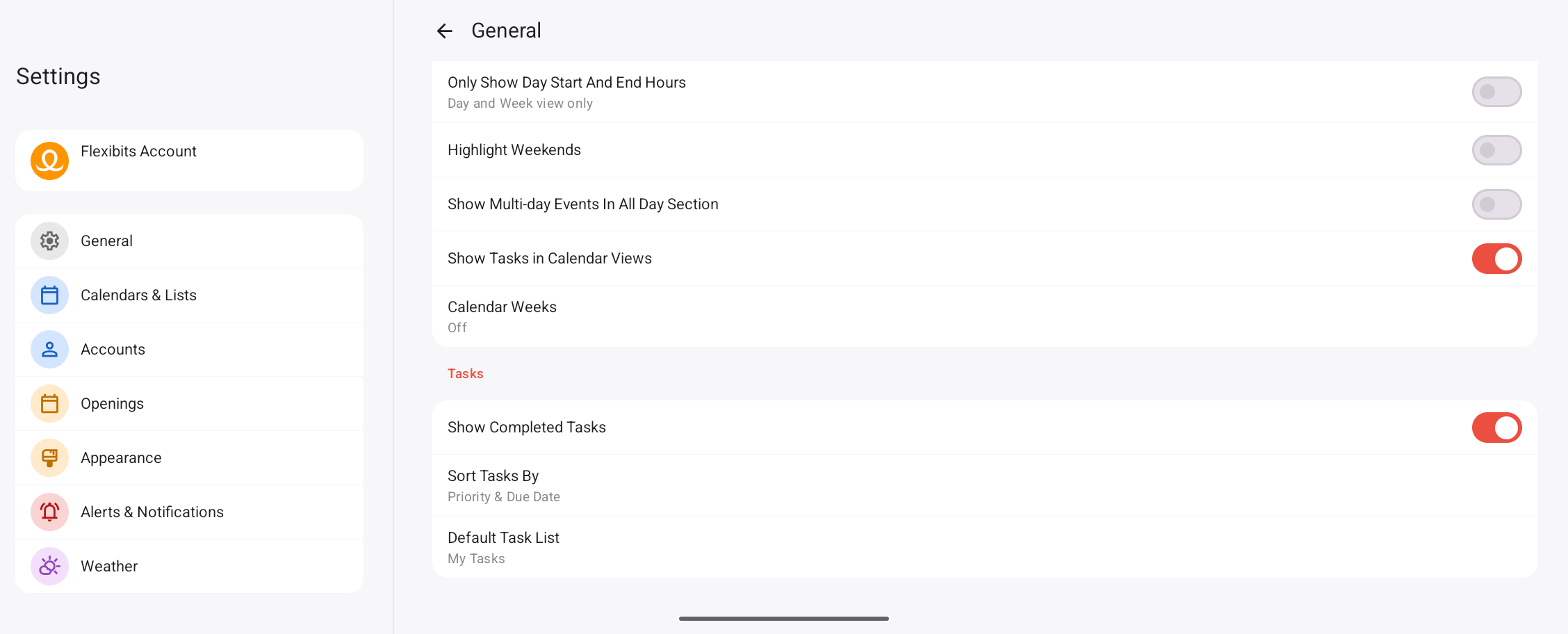
- Only Show Day Start And End Hours: Restrict the Day and Week views to the hours defined by your day’s start and end times.
- Highlight Weekends: Make weekends stand out from weekdays.
- Show Multi-day Events In All Day Section: Events that span multiple days are displayed alongside all-day events.
- Show Tasks in Calendar Views: Tasks are displayed in the Day, Week, and Month views.
- Show Calendar Weeks: Enable to view week numbers in the month and week views. Choose a custom start date for your calendar week numbers if needed.
Tasks
- Show Completed Tasks: When enabled, completed tasks will be shown in the event list. When disabled, tasks will disappear after they’re checked off.
- Sort Tasks By: When displaying tasks, Fantastical can sort them by priority & due date, due date, or title.
- Default Task List: The list to which all new tasks are added, unless otherwise specified.
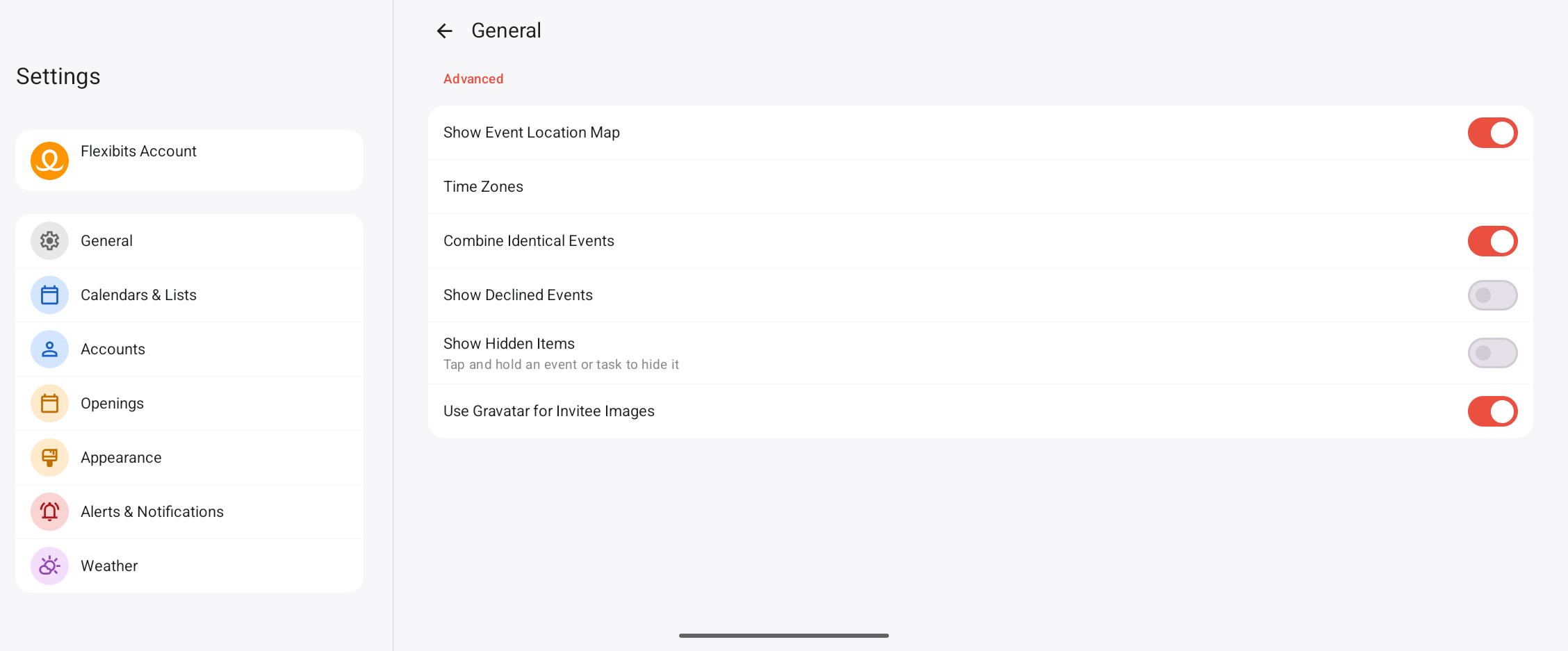
Advanced
- Show Event Location Map: When enabled, Fantastical will show a small map in the event details when there is a mappable location.
- Time Zones: Enable a time zone override, add up to 3 extra timelines in day and week views, and choose your favorite time zones. Favorite time zones will be displayed in an event’s details.
- Combine Identical Events: Merge events from different calendars when each event has the exact same title, time, and details.
- Show Declined Events: Reveal any event invites you previously declined.
- Show Hidden Items: Reveal any events or tasks that you have previously hidden. To hide an event or task, right-click the item and then select the “Hide” option.
- Use Gravatar for Invitee Images: If you enable this setting, Fantastical will use Gravatar images when available. Otherwise, it will only use contact images or placeholder initials.
Calendars & Lists
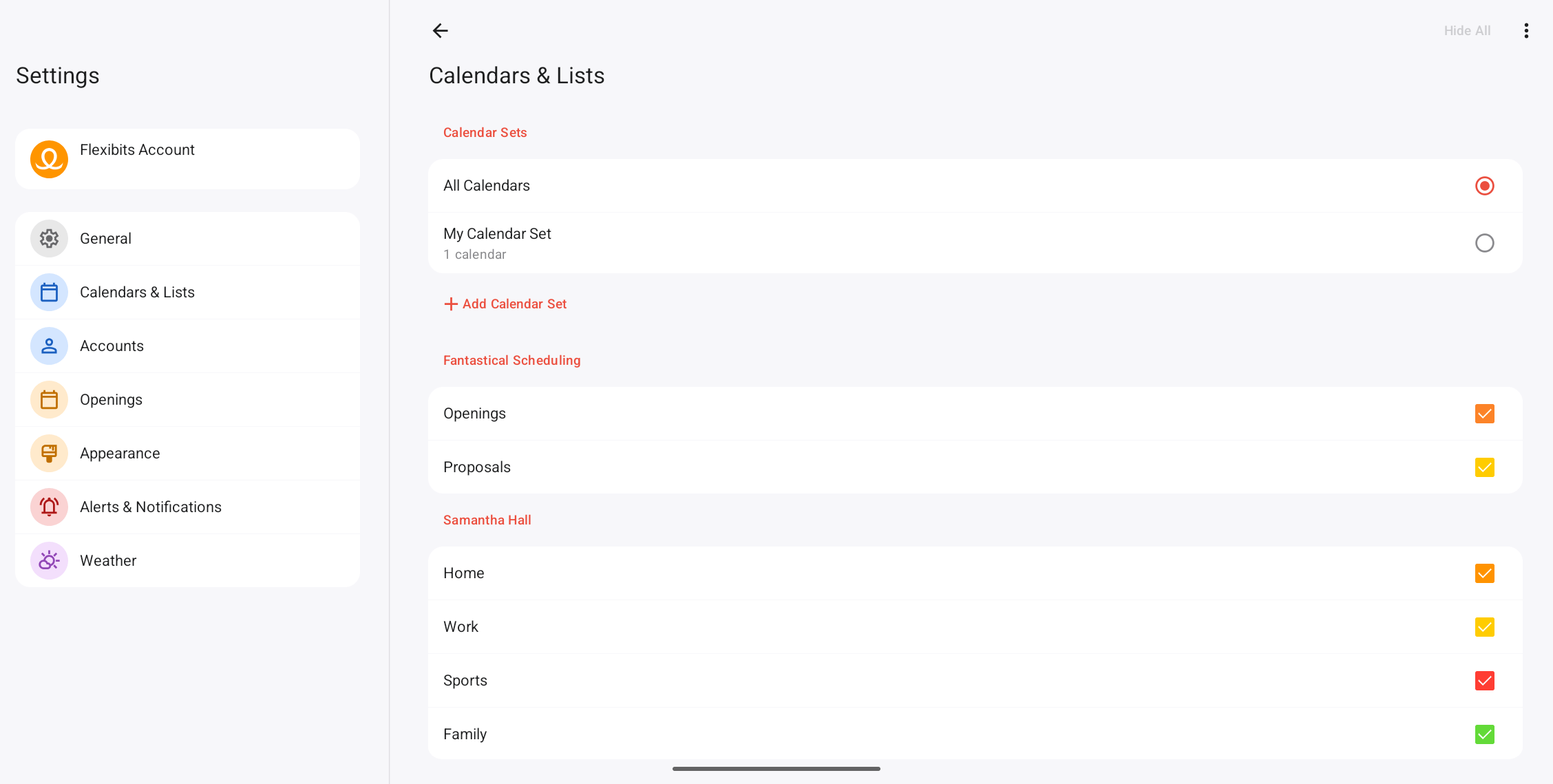
Add a new Calendar Set using the + Add Calendar Set option in this section. Select an existing set in the Calendar Sets section at the top, and its available calendars will be displayed in the list below. Checking or unchecking calendars on the right toggles calendar visibility when the set is selected in any view.
You can use Calendar Sets to quickly switch between groups of calendars with ease. For example, creating Calendar Sets titled “Work” and “Home” will allow you to hide all work events when you’re not at your workplace.
Adding calendars
Click the vertical dot icon in the top right corner to add a new calendar, task list or calendar subscription.
Please note: not all calendar services will allow you to add or modify calendars and lists directly through Fantastical, so if you are unable to add calendars or lists in this manner, you will need to add them directly on your calendar service’s website.
Editing calendars
Click on a calendar name in the list to change its name or color. You can also disable all alerts and invitation notifications for the calendar by checking the Ignore Alerts setting in this section.
Accounts
The Accounts pane in Fantastical’s Settings allows you to add a variety of account types including Google, iCloud, Exchange, Microsoft 365, Todoist, fruux, Meetup or any CalDAV account.
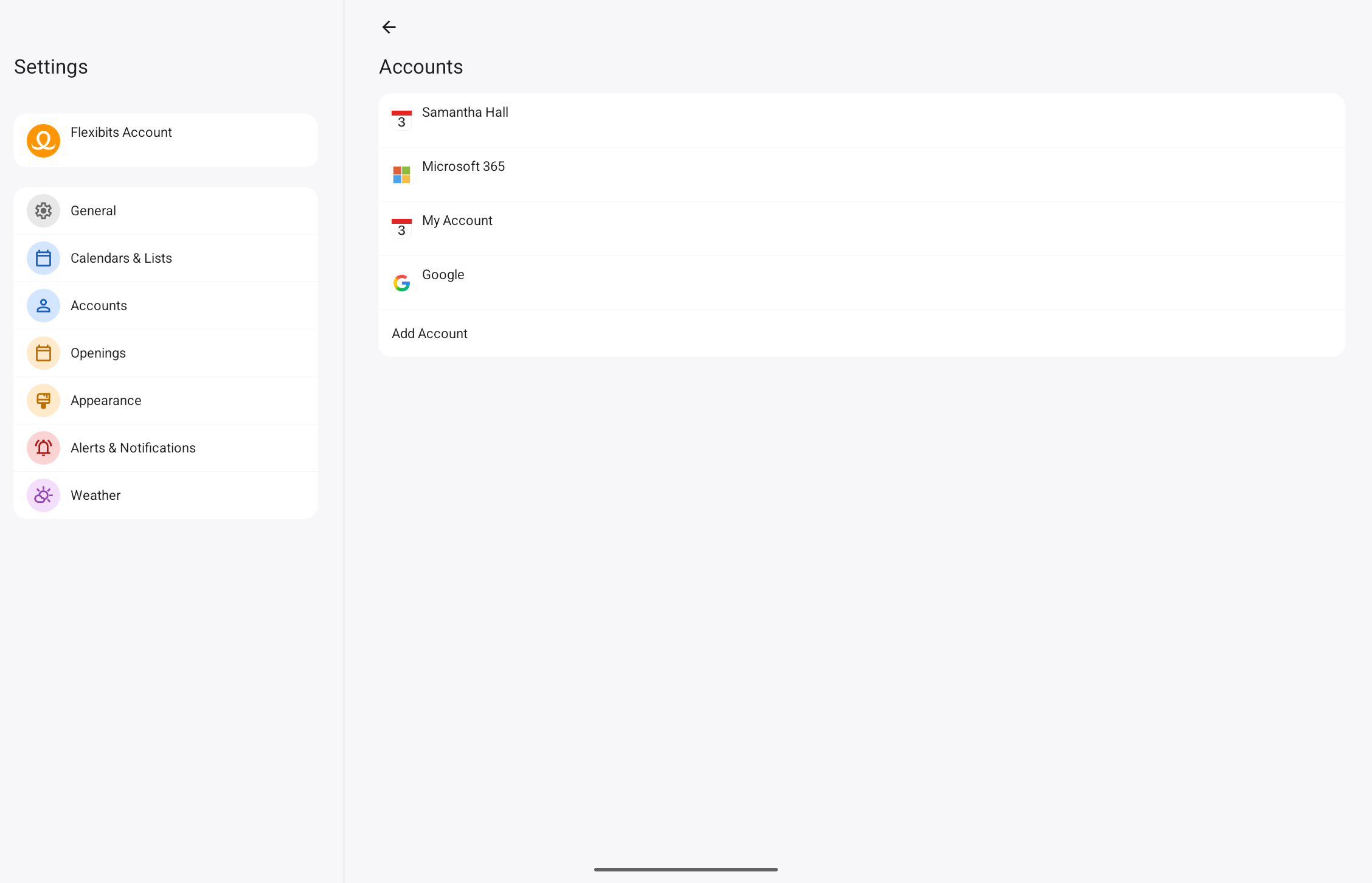
To add a new account:
- Choose the Add Account option at the bottom of the Accounts list on the right side.
- A panel with account type options will appear.
- Select the type of account you’d like to add.
- Fill in the requested information.
Depending on the account type, different information will be required. To see instructions for specific account types, use the links below:
Existing accounts can be enabled or disabled without deleting them by selecting them in the list and checking the Enable this account setting in account details.
Please note: Microsoft Graph syncing doesn’t support delegated calendars in Fantastical for Googlebook on Microsoft 365 accounts. However, if the shared calendars are added to your account in the Microsoft web UI, then they should show up in Fantastical as well.
Openings
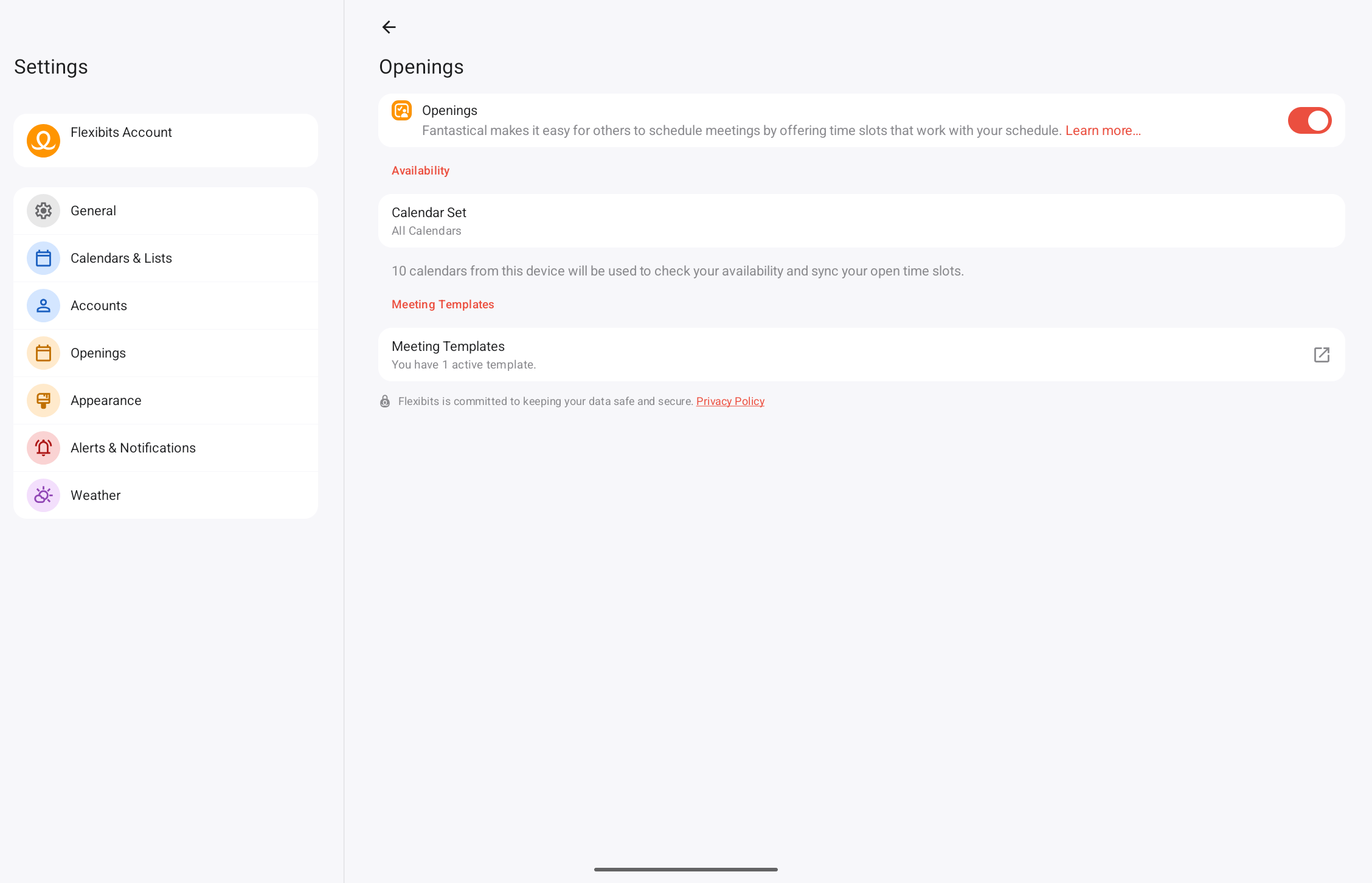
Enable Openings to share your available time slots with others so they can quickly choose a time that works for everyone.
-
Calendar Set: Choose which calendar set is used to upload your free time slots to Flexibits and share with your recipients. Only your calendar’s empty time slots are uploaded to Flexibits. Flexibits does not have access to any of your event data.
-
Meeting Template: Click here to go to your Flexibits Account and manage your Meeting Templates.
Appearance
Fantastical’s appearance can be adjusted to match your personal preferences.
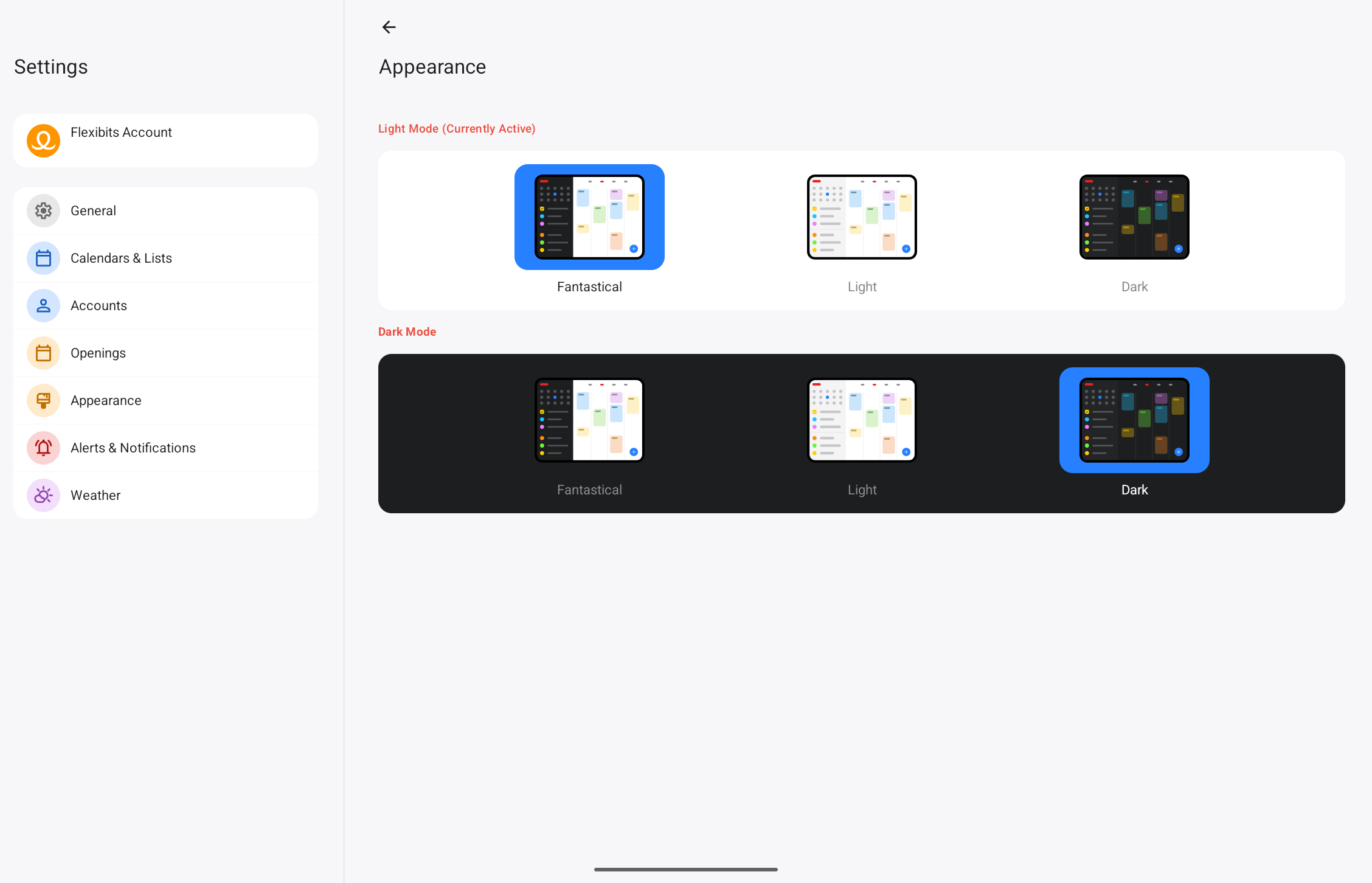
Light Mode
- Fantastical: Dark sidebar and light calendar
- Light: Light sidebar and light calendar
- Dark: Dark sidebar and dark calendar
Dark Mode
- Fantastical: Dark sidebar and light calendar
- Light: Light sidebar and light calendar
- Dark: Dark sidebar and dark calendar
Alerts & Notifications
Use alerts to make sure you never miss an event.
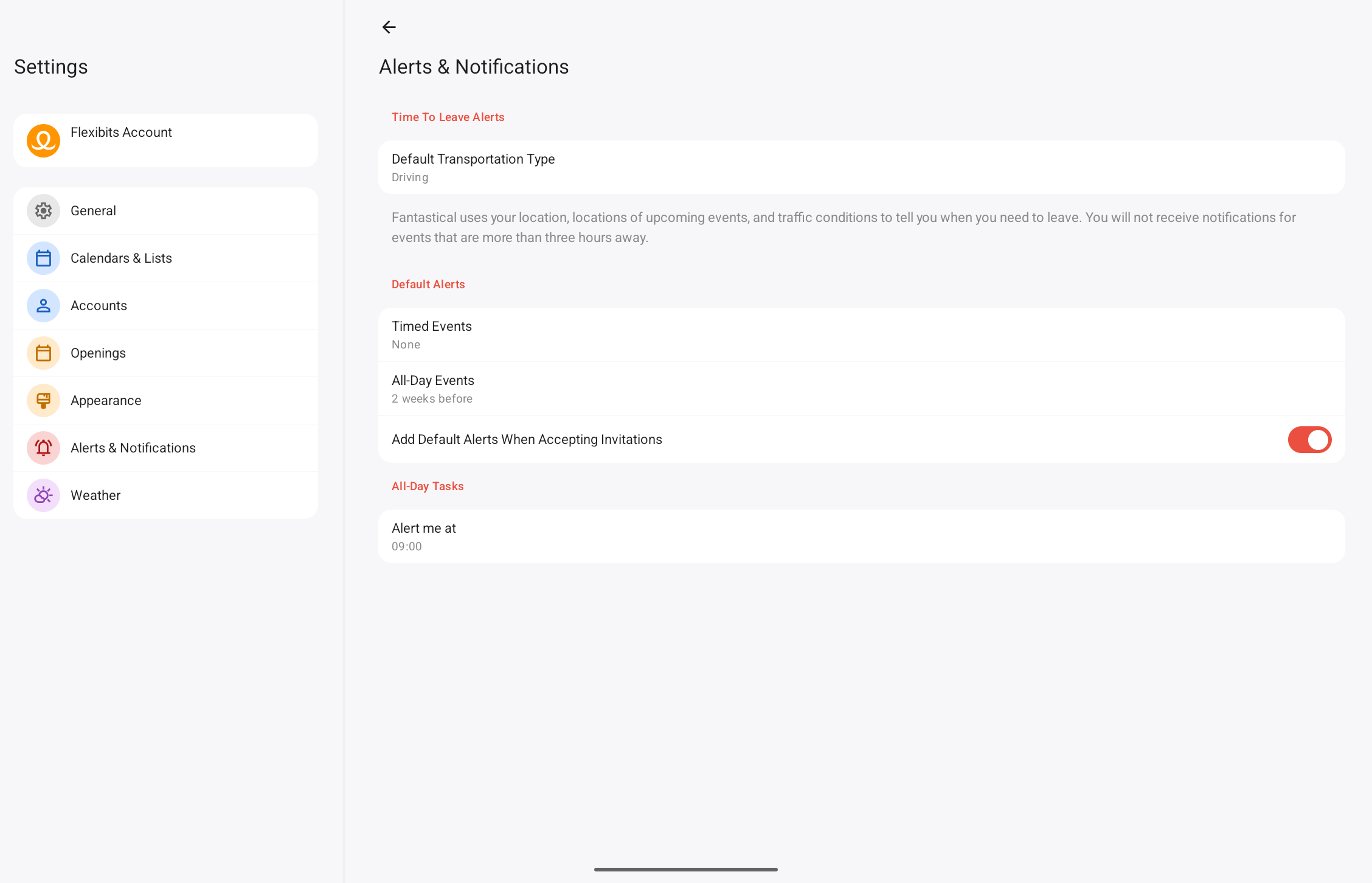
Time To Leave Alerts
- Default Transportation Type: Choose your default transportation type from the following options: Driving, Walking, and Transit.
Default Alerts
Fantastical can be set to automatically add alerts to new Timed and All-Day events. Notification types and alert times can be specified for each type.
Add multiple alerts (if supported by your calendar account) by choosing another alert type at the bottom of each section. Set an alert to “None” to disable it. Alerts can always be adjusted manually for each event when necessary.
- Add default alerts when accepting invitations: Automatically add the default alerts to an invitation when accepting the invitation in Fantastical.
All-Day Tasks
- Alert me at: Choose the time you want a notification to appear for All-Day Tasks.
Weather
Enable Weather to display the local forecast directly in your calendar.
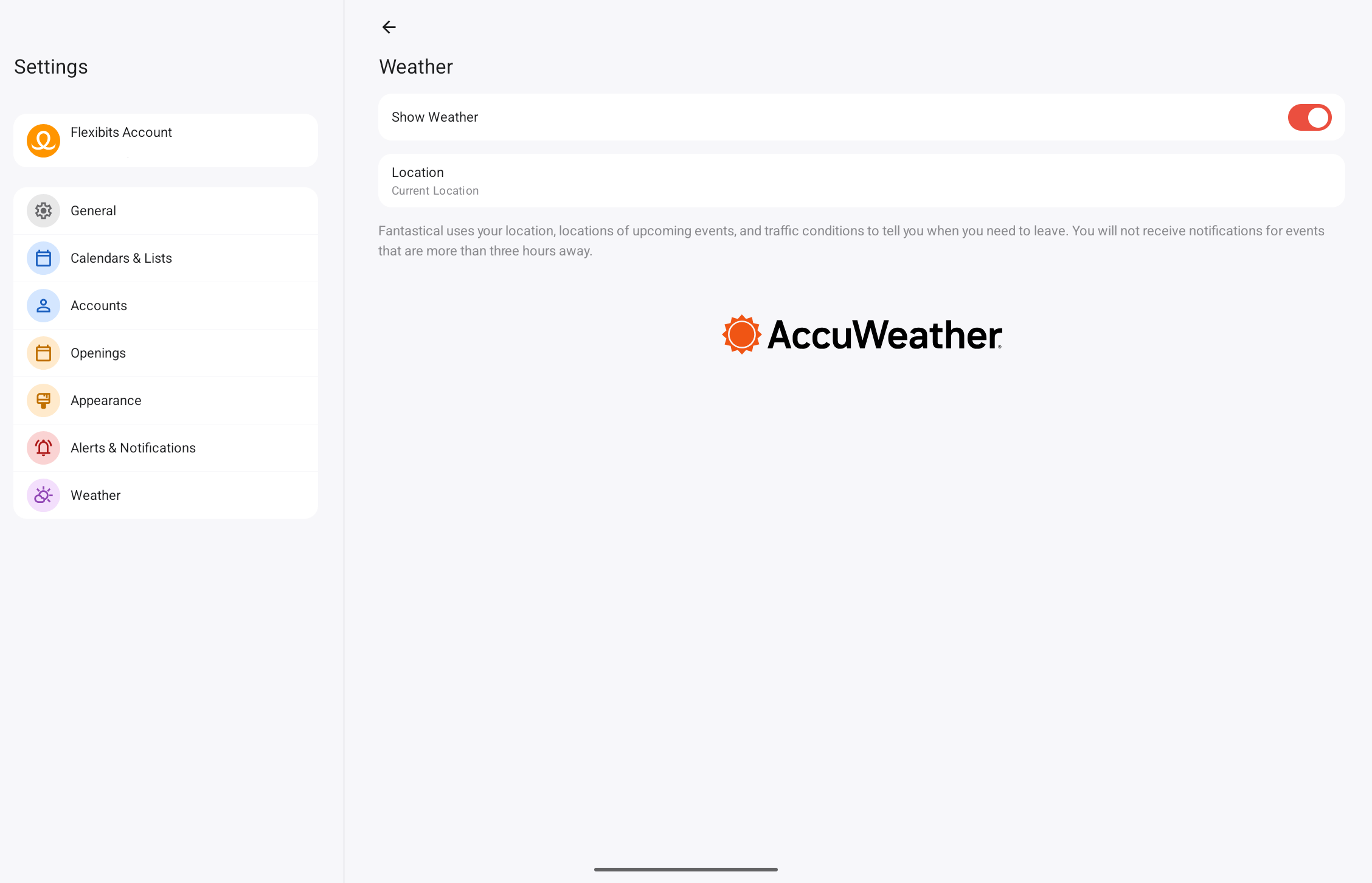
- Show weather for: Displays weather for the selected location directly in Fantastical’s user interface.
- Location: Choose the location that is used when displaying weather in Fantastical.
