




Calendar Sets
Fantastical goes beyond just allowing you to choose which calendars are visible by offering calendar sets. Calendar sets allow you to create different collections of calendars and quickly switch between them, allowing you to view only what’s pertinent at any given time.
When first opened, there is a Calendar Set called My Calendar Set ready for you. Check or uncheck calendars in the list as desired, or begin by adding a new set right away.
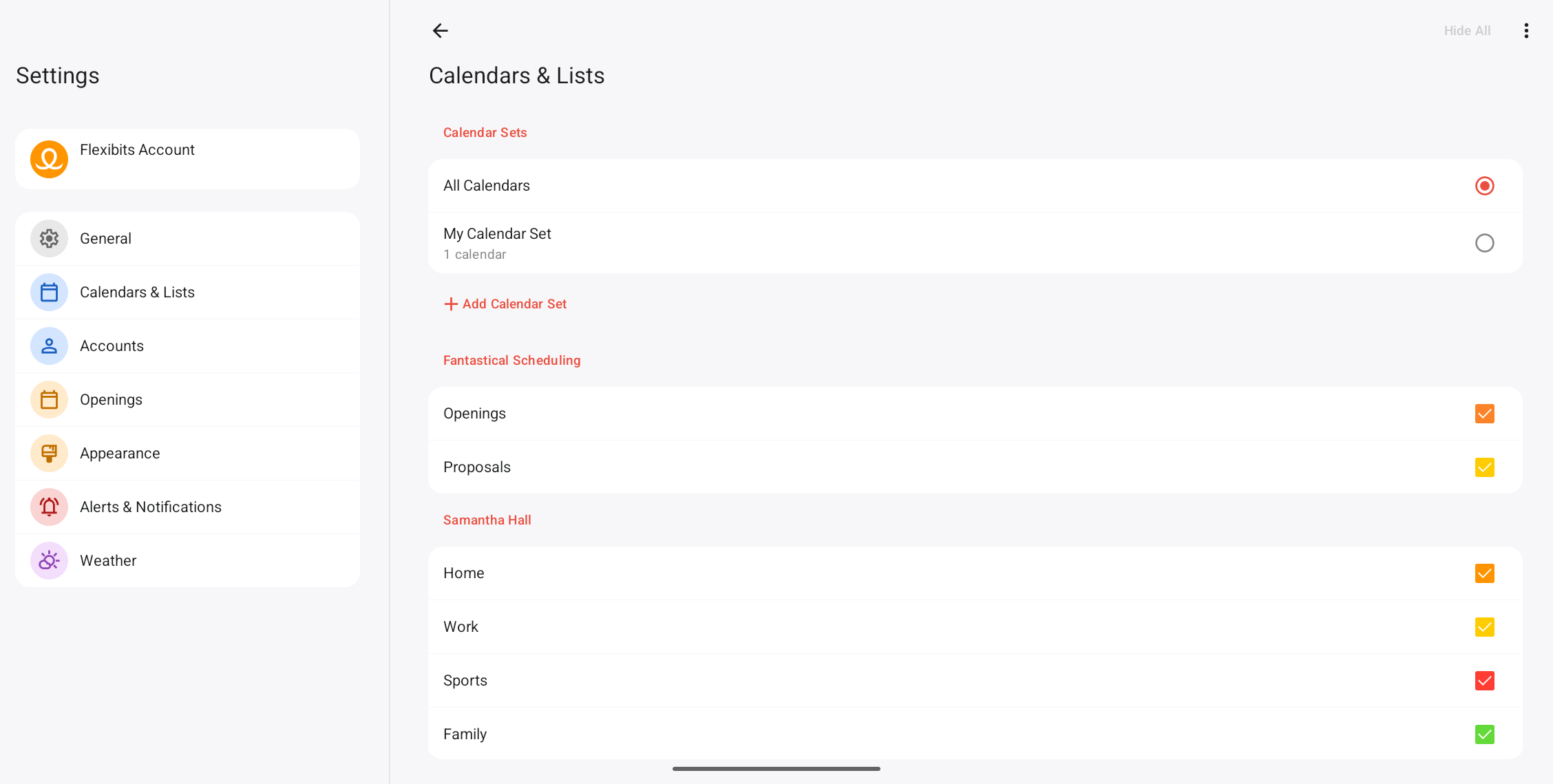
Once you are in the Calendars & Lists section of Fantastical’s settings, you can create a new calendar set by selecting the + Add Calendar Set option.
Override default calendar and task list
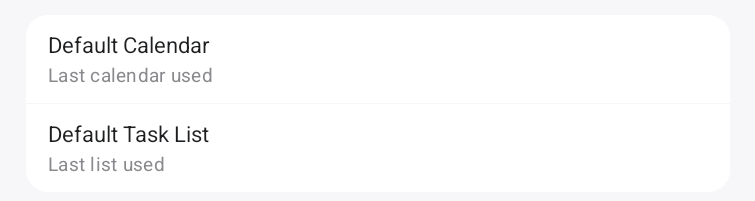
In addition to the general Default Calendar and Task List options in Fantastical’s settings, you can also set a default calendar and task list per calendar set, which will override the general default settings. Go to Fantastical’s Settings > Calendars & Lists and select the calendar set name to see what the default calendar and task list are for each set, then make changes if necessary.
Location and time based calendar sets
You can configure calendar sets to activate at a certain time of day or location by selecting the calendar set name and enabling Automatically Activate At.
For example, if you are in the office until 5pm you may want your “Work” calendar set to be active only during that time, and then your “Personal” calendar set could be shown in the app after those work hours — or even when you change location and arrive back home.

