




Calendar Views
Fantastical has a number of ways to view your calendars.
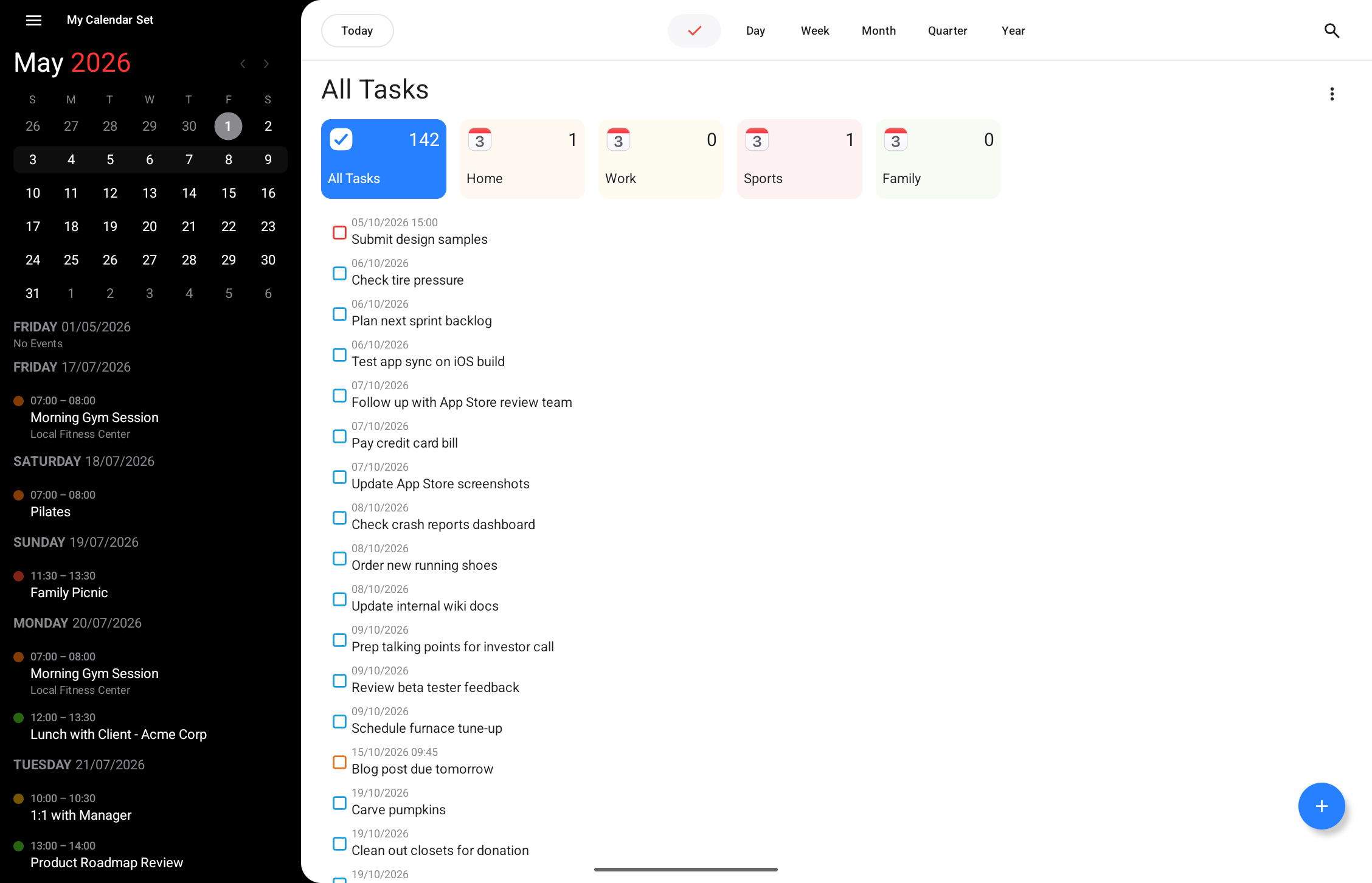
Task view
View all your tasks in a single view by selecting the tick icon at the top of the screen.
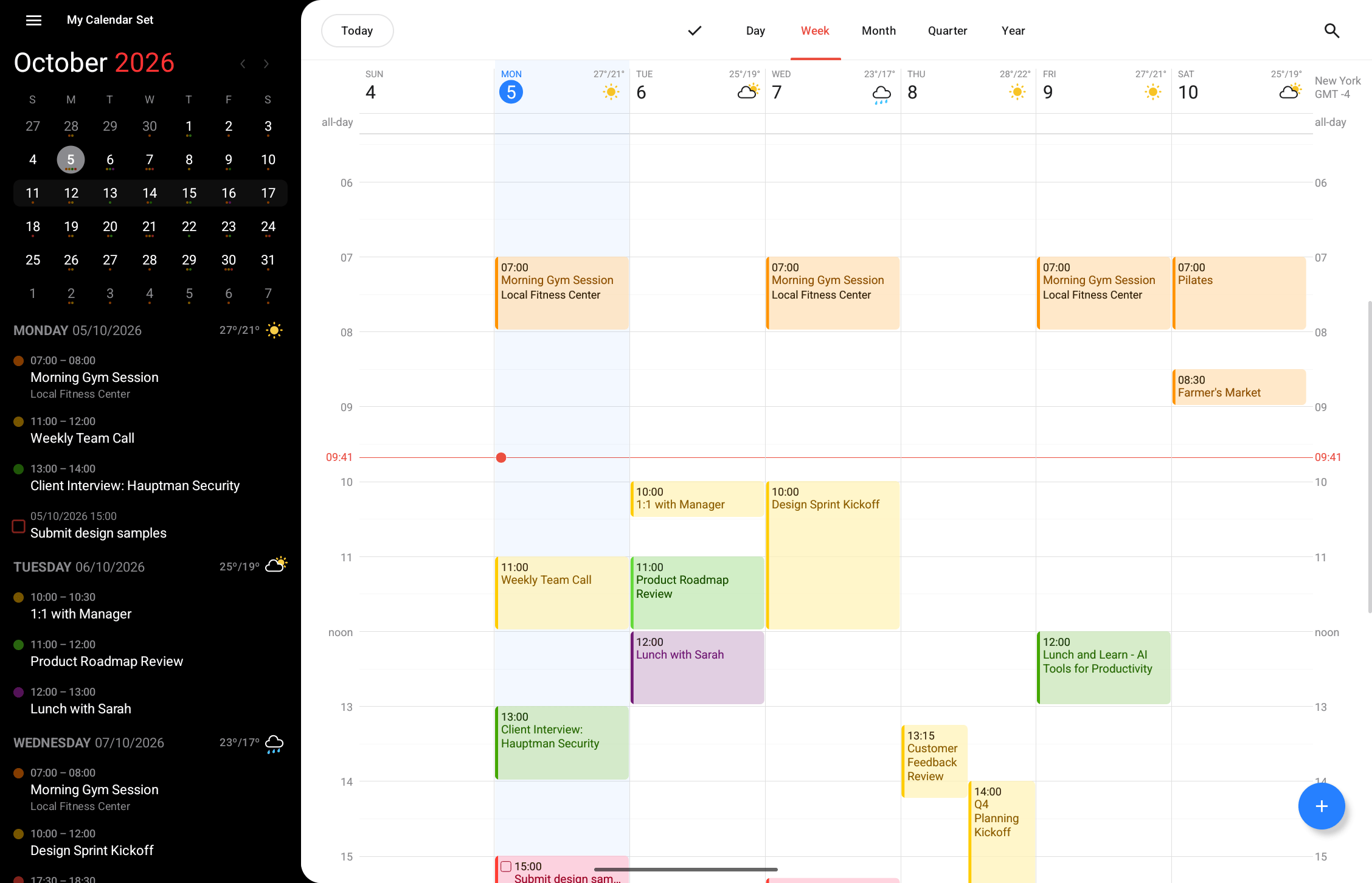
Full Calendar Window
The Full Calendar Window provides an overview of your entire calendar, with day, week, month, quarter and year views. The sidebar shows a mini calendar for the month and a summary of all events related to the current view.
Availability indicators
Fantastical uses visual cues to indicate how appointments affect your reported availability when other users query your calendar service:
- A solid dot means that other users of your shared calendar system will be told that you are “busy.”
- A circle means that other users scheduling an event will be told that you are free, even if the event they are scheduling overlaps with yours.
- A “forbidden” sign means that you expressly set your status to “unavailable” at that time.
- A dotted circle means that you might be available at that time.
Please note that not all calendar services support all statuses.

