




Urgent Alarms
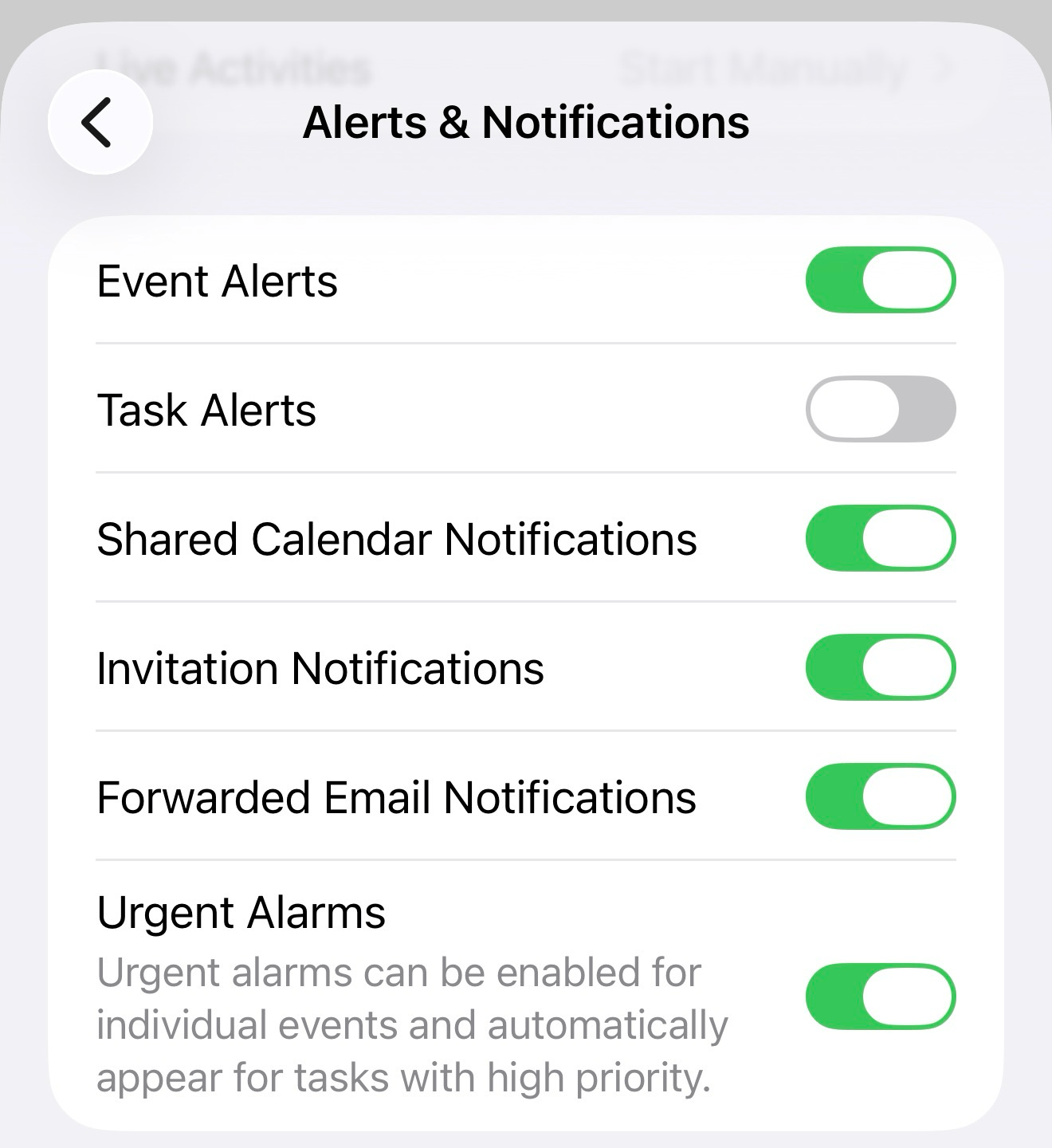
To enable Urgent Alarms in Fantastical on iOS, open Fantastical > Settings > Alerts & Notifications and toggle on the option for Urgent Alarms:
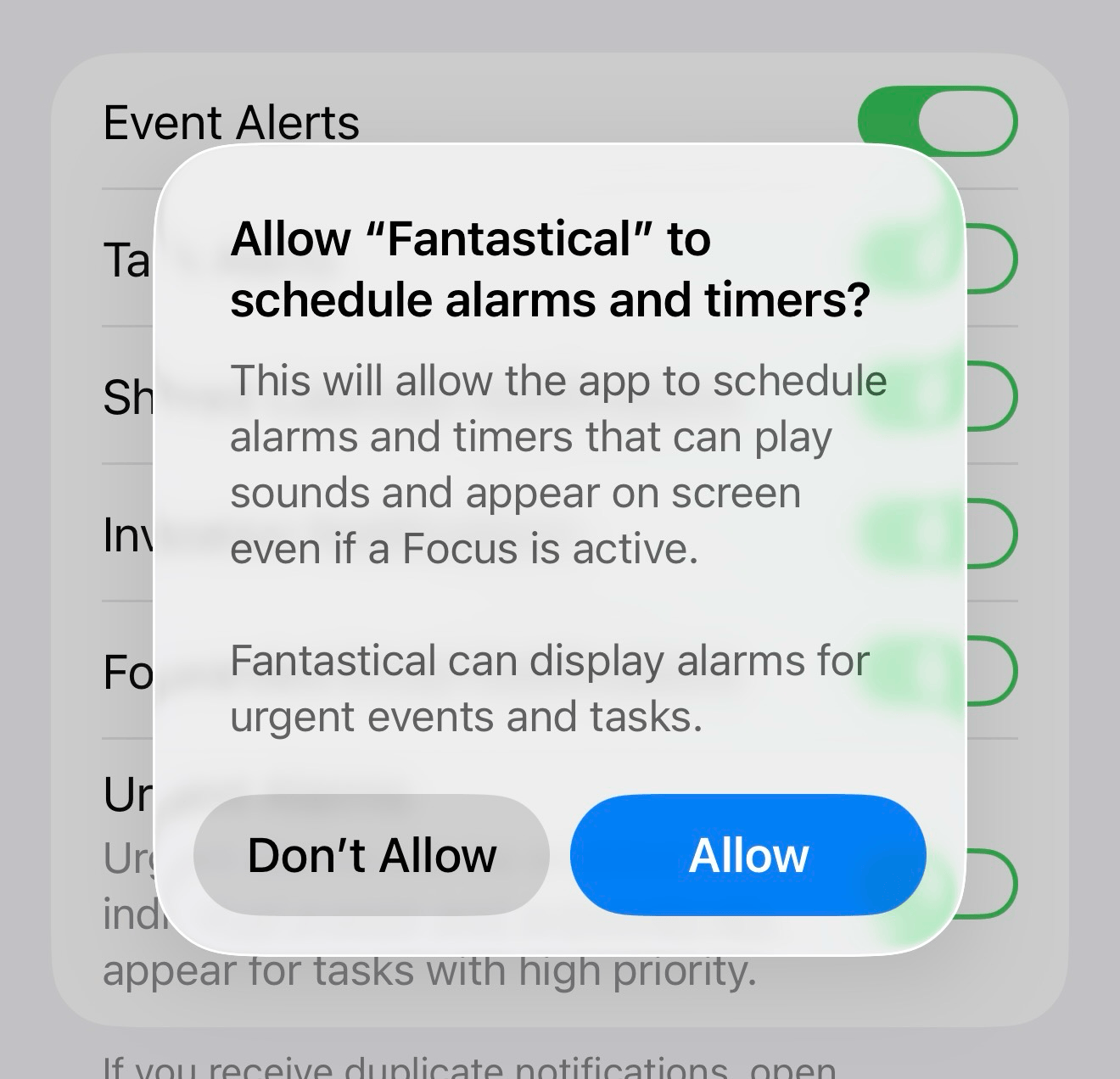
When prompted, allow Fantastical to schedule alarms and timers:
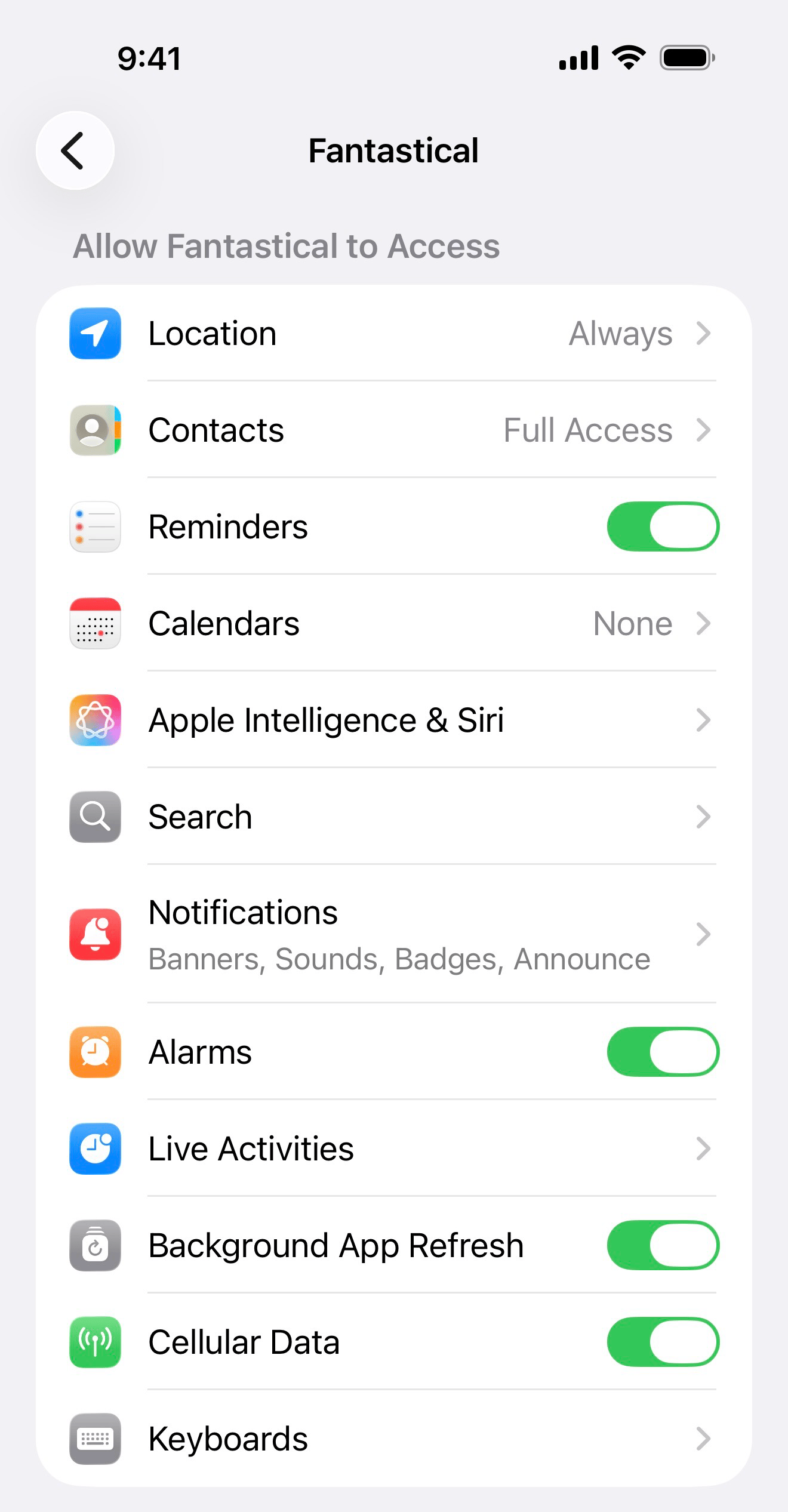
If a prompt is not shown in Fantastical, use the following steps to allow the alarms in the app:
- Open the iOS Settings app
- Select Apps
- Select Fantastical
- Toggle on the option for Alarms
Using Urgent Alarms in Fantastical
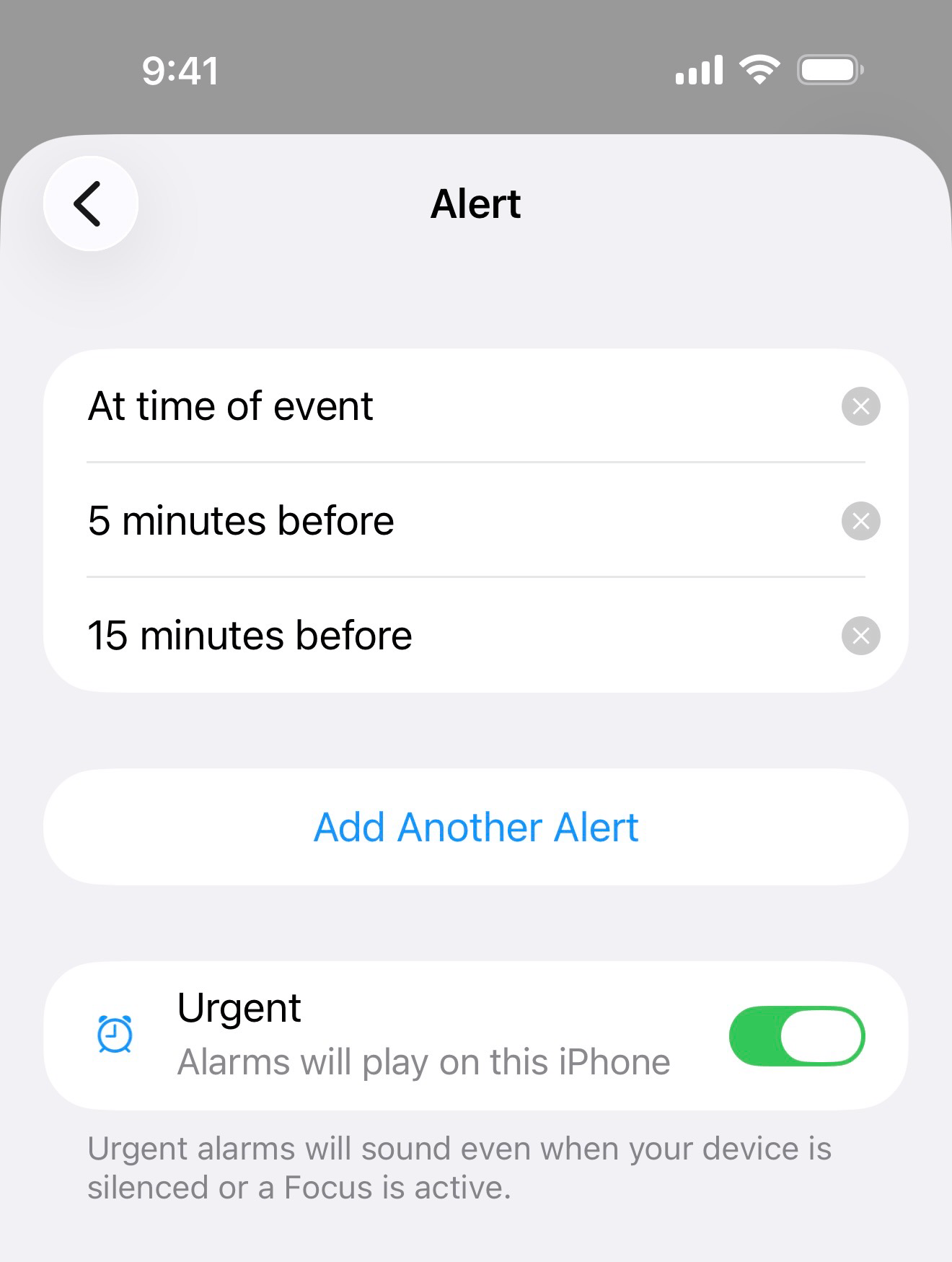
Once enabled, Urgent Alarms can be added individually on tasks and events by enabling the Urgent Alarm toggle in the Alerts section of the event/task item editor.
Important
-
Calendar accounts must be added directly to Fantastical in Fantastical > Settings > Accounts to add an Urgent Alarm to an event. This feature will not be available for events on calendars added using the Show Calendars from iOS option in the app. For information on adding accounts directly to Fantastical see the Getting Started walkthrough.
-
All day tasks and events do not support Urgent Alarms in Fantastical
-
Special Google events (Out of Office, Focus Time, Events from Gmail) do not support Urgent Alarms

