




Calendar Mirroring
With Calendar Mirroring, Fantastical has the ability to automatically copy events from one calendar to another allowing you to block off time on multiple calendars when creating an event in the app.
Setting up calendar mirroring
Calendar Mirroring is controlled by Mirroring Rules that can be created in the app at Fantastical > Settings > Mirroring after selecting the + in the bottom left corner of the Mirroring tab.
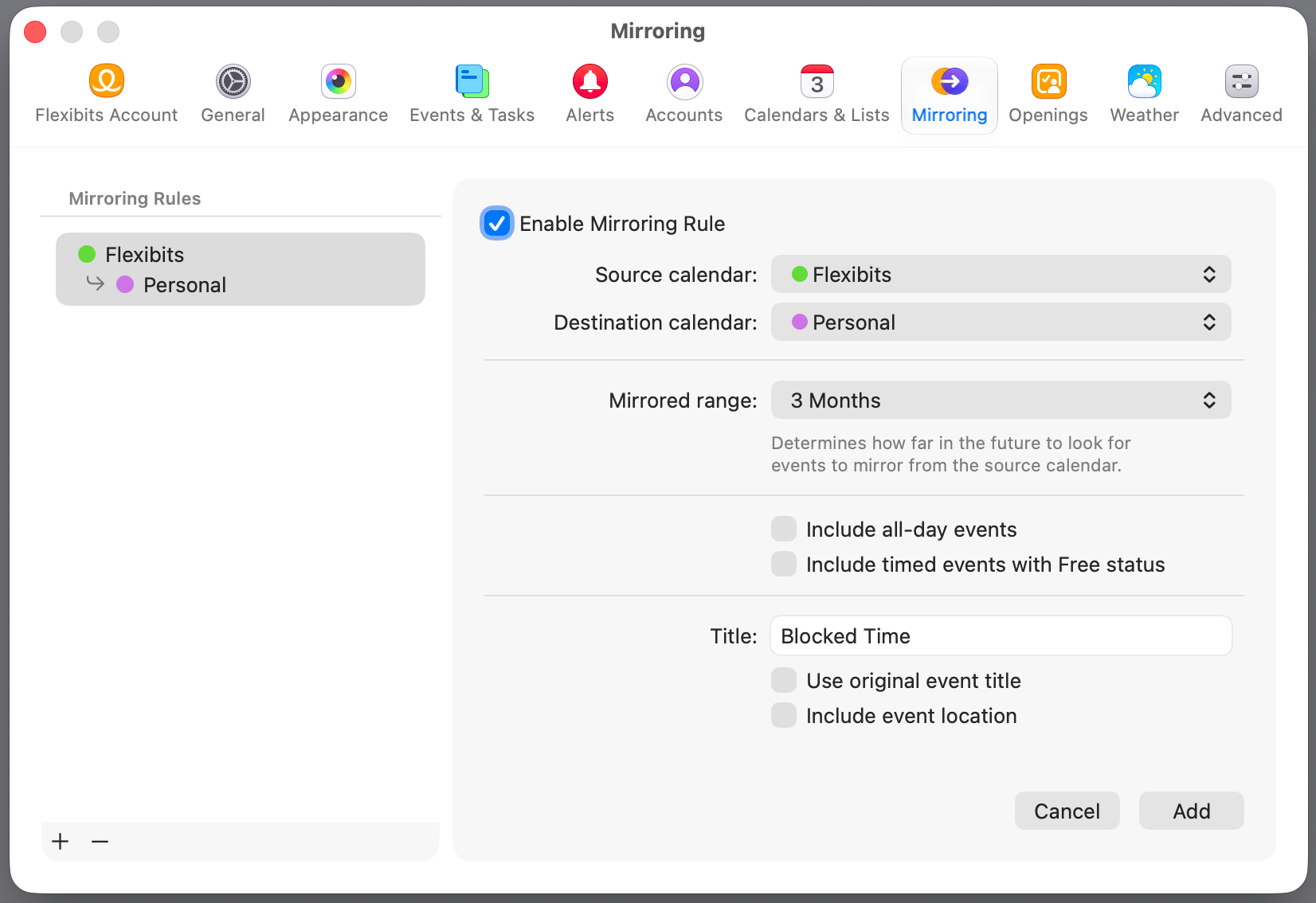
- Enable Mirroring Rule: Allows you to enable/disable rules that you have created for mirroring events. If a rule is disabled, existing mirrored events will stay in place but they will not be updated if the source event is changed and no new events will be created.
- Source calendar: The calendar from which the events should be mirrored. The source calendar can be any calendar that has events added to it (except the Openings and Proposals calendars from Flexibits Scheduling). Write access is not required for a source calendar, and once it is set it cannot be changed on the rule.
- Destination calendar: The calendar to which the events are mirrored. This cannot be the same as the source calendar and it must be writeable by the user. The calendar also needs to support custom properties, as is the case for CalDAV, Exchange, and Graph, and must come from an account that has been added directly to Fantastical > Settings > Accounts. Once this is set it cannot be changed on the rule.
- Mirrored range: Determines how far in the future Fantastical will look to mirror events. Fantastical always looks 2 weeks in the past and then the amount of time that is set for this option in the future. All mirroring activities (creating, updating, and deleting existing mirrored events) happen based on this time frame.
- Include all-day events: Allows you to choose to include all-day events in the mirroring rule.
- Include timed events with Free status: Allows you to choose to include timed events that are marked as free in the mirroring rule.
- Title: Allows you to customize the title shown for mirrored events. The default title for mirrored events is Blocked Time, however this can be changed.
- Use original event title: Allows you to choose to show the original event title on mirrored events.
- Include event location: Allows you to choose if the location field is included in the mirrored event details. When disabled, the location field of the mirrored event is empty.
Important
- All mirrored events will share start time, end time, time zone, date, recurrence rules, and free/busy status from the original events.
- There can only be a single mirroring rule for a given Source > Destination.
- Mirrored events do not sync across multiple rules. If you have one rule for Calendar 1 > Calendar 2, and a second rule for Calendar 2 > Calendar 3, you will never see mirrored events from Calendar 1 on Calendar 3.
- Events created by other known mirroring services (ex. Reclaim, OneCal) are not mirrored.
- When mirroring a recurring event, all historical and future instances of that event will be mirrored no matter the mirrored range you set for your rule.
Privacy
- The mirroring rules sync between devices and are stored on Flexibits’ encrypted servers. These include calendar names, but no event information.
- Events are created on device and sent directly to your destination calendar. No event information is sent to Flexibits servers or saved outside of your device.

