

Fantastical Connector (MCP) for Claude
Video: Fantastical Connector (MCP) for Claude
Fantastical offers a MCP Connector for Claude’s desktop app on the Mac starting in version 4.1.10.
To install the MCP server, start by opening the Claude desktop app, going to the settings, and choosing the option for Connectors. In the Connectors section, select Browse connectors and search for Fantastical.
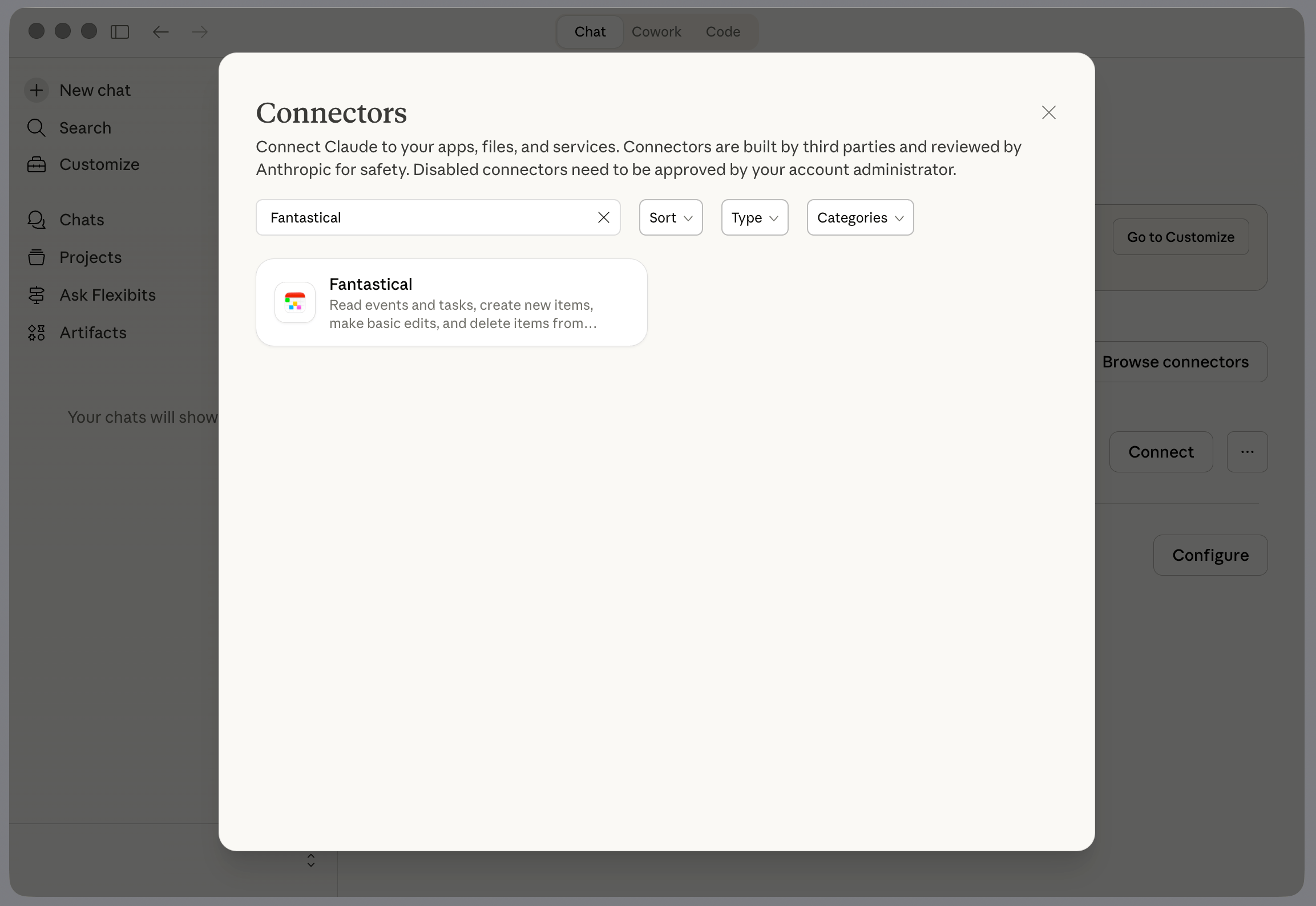
Then, install the Fantastical Connector by selecting the Install button.
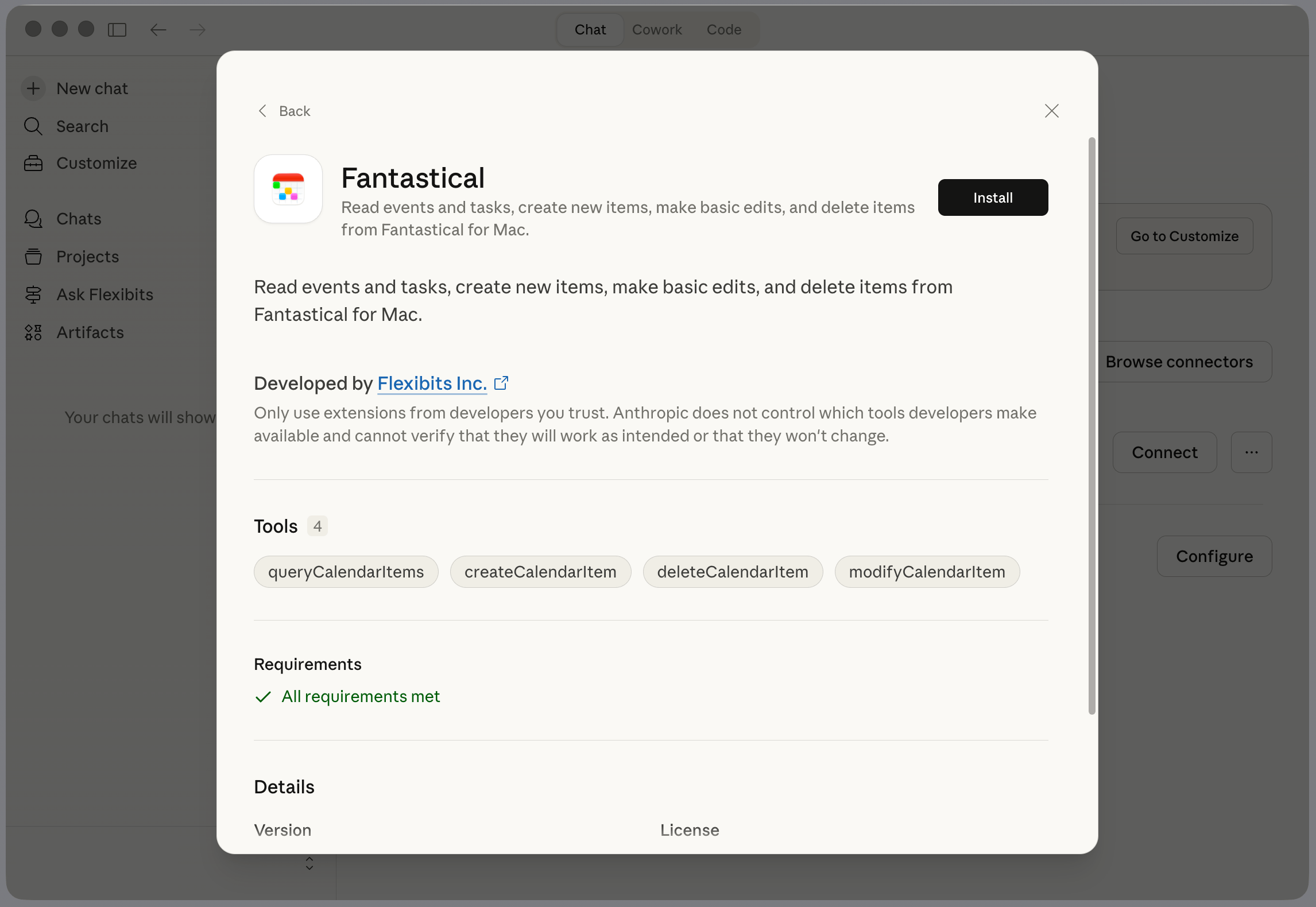
Once installed, make sure the Connector is enabled, then select the Configure option to adjust the settings.
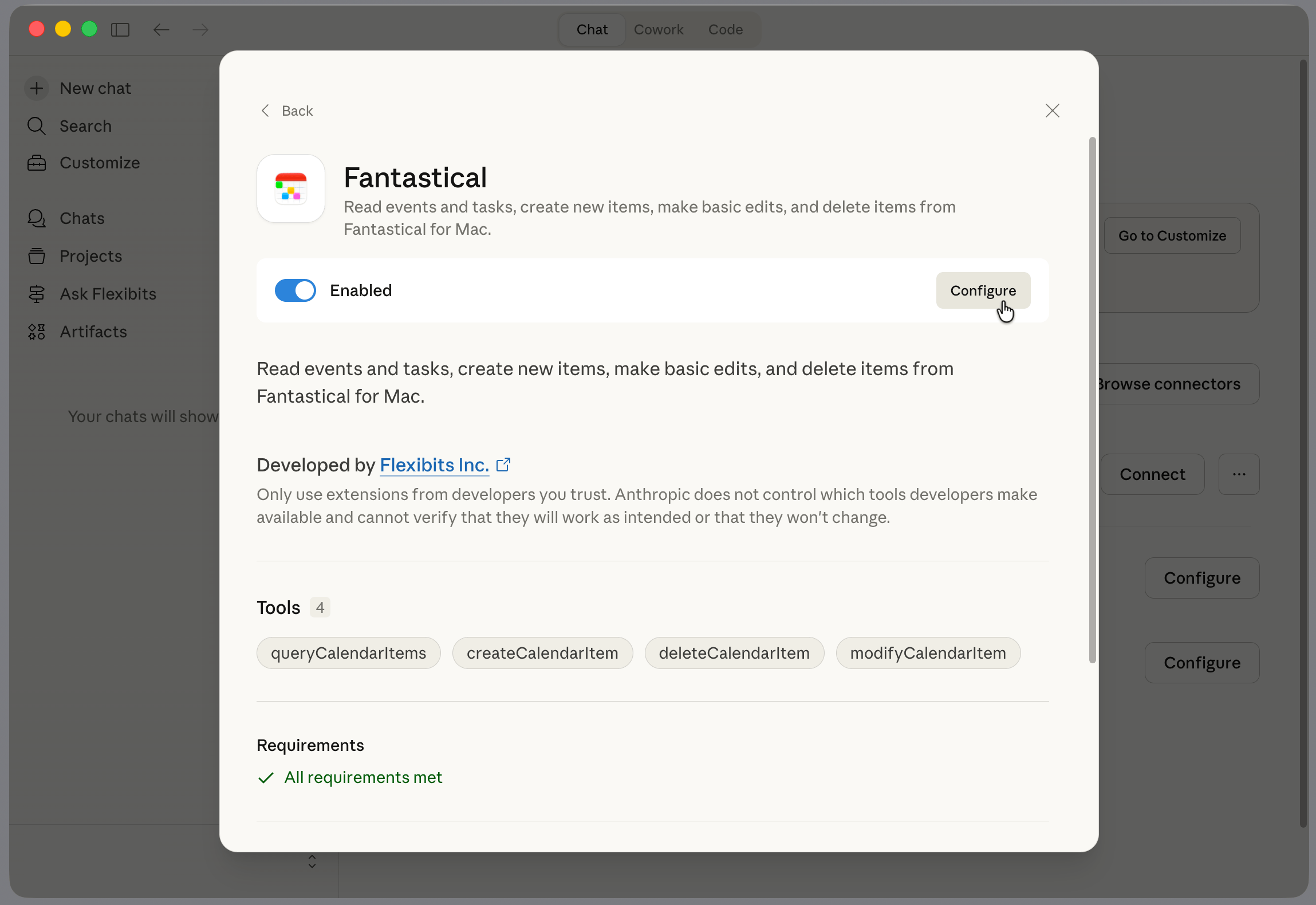
The Fantastical Connector contains four tools that can be used in Claude:
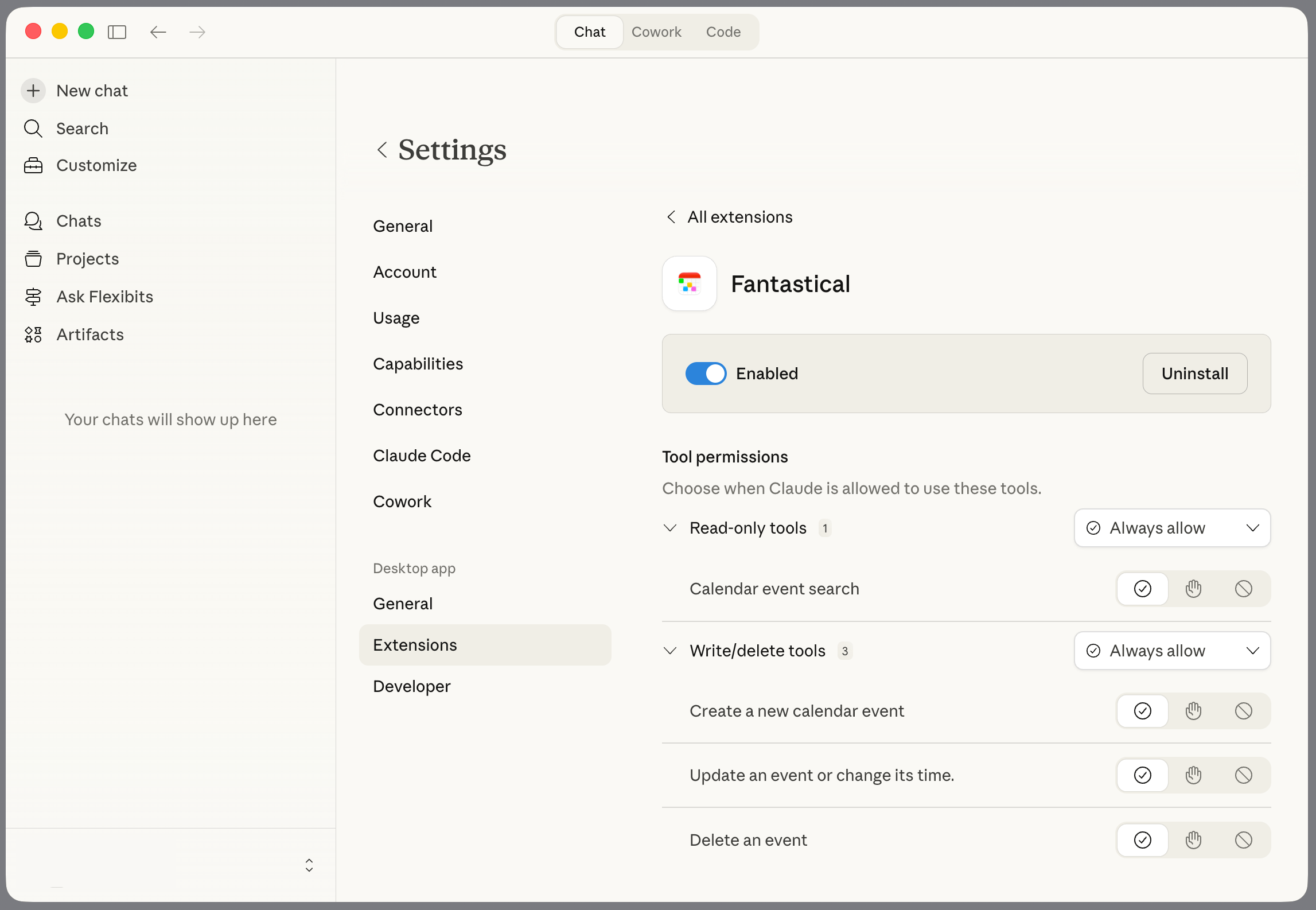
1 read only tool:
- Calendar event search: Allows you to get information about events (search by name/date) from Fantastical.
3 write/delete tools:
- Create a new calendar event: Allows you to create new events in Fantastical.
- Update an event or change its time: Allows you to rename or reschedule events in Fantastical.
- Delete an event: Allows you to delete an event in Fantastical.
Each tool can be given its own unique permission from one of the following options:

- Always allow: The tool will always be allowed to access Fantastical without requesting permissions.

- Needs Approval: The tool will always ask for permission before accessing Fantastical.

- Blocked: The tool will never be allowed to access Fantastical.
Examples
You can get started with the Fantastical Connector by trying the following examples.
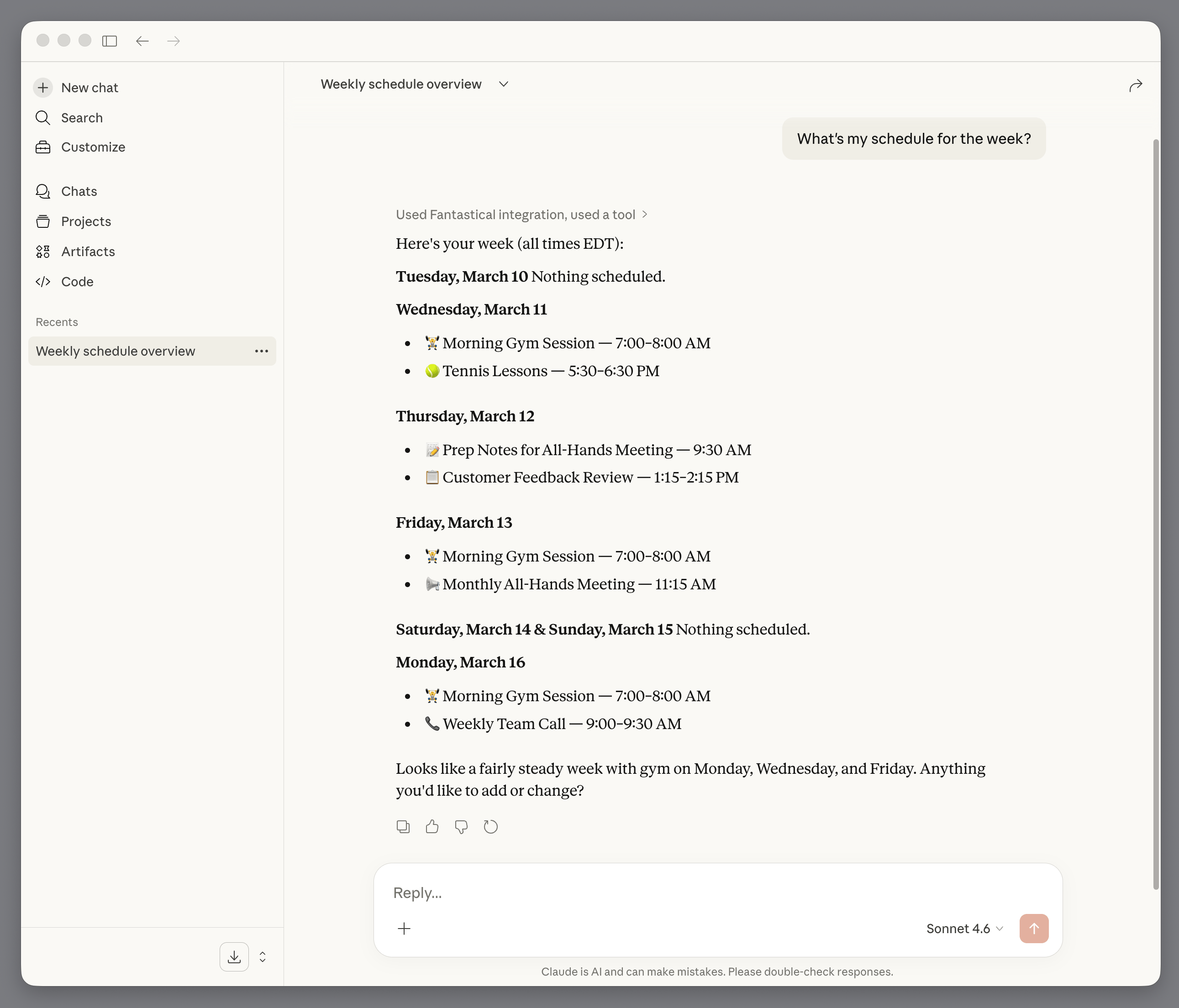
Claude can give you an overview of your upcoming schedule if you enter something like the following:
- What’s my schedule for the week
If you need to schedule a meeting, but don’t have an exact date/time in mind, you can use the following to get a list of options from Claude:
- Find a 1.5 hour slot for an app design meeting in the next two weeks
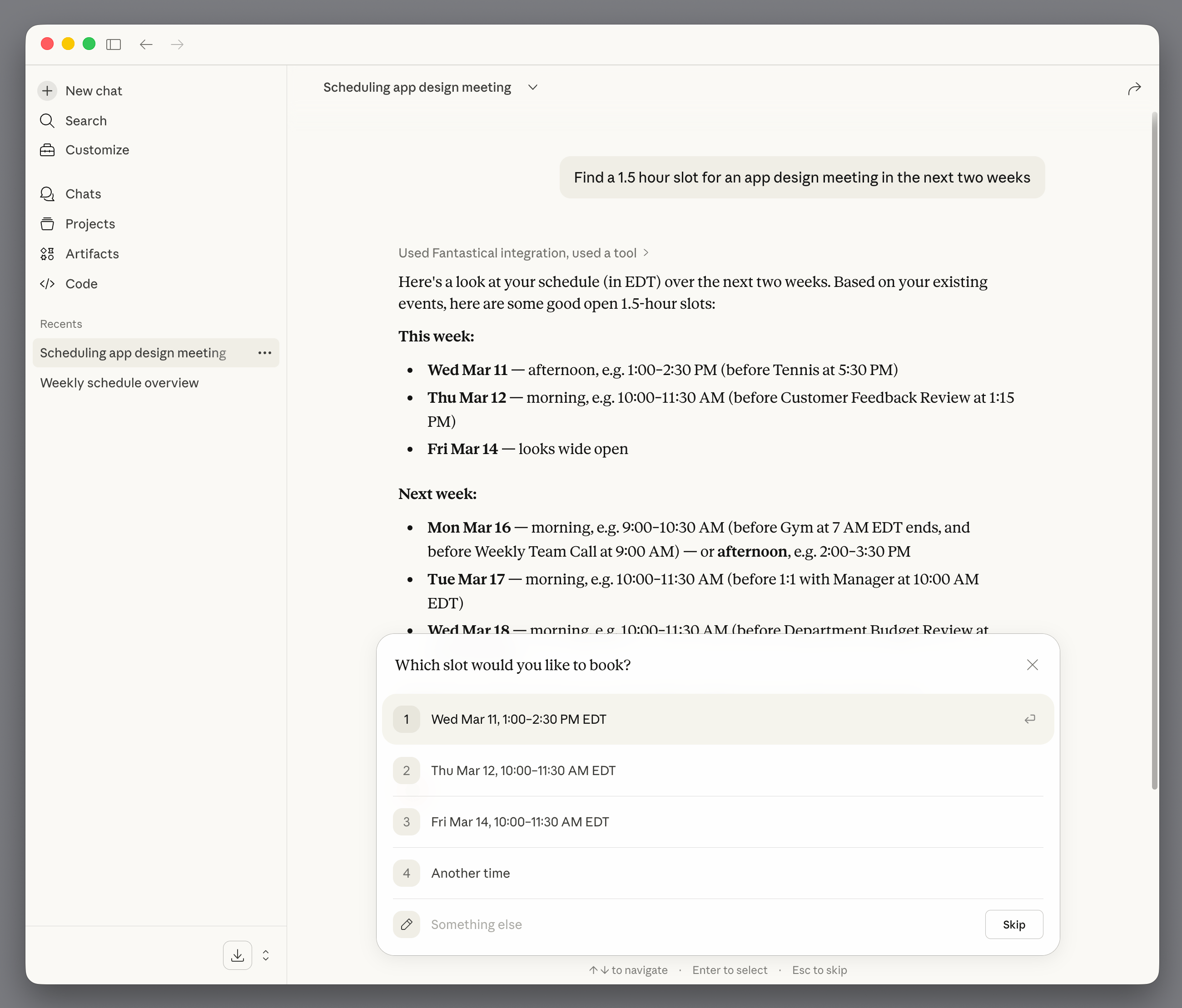
Then, when you select your preferred slot, your meeting will be created and you will be notified in Fantastical.